How to Use Veracity Service Desk in Microsoft Teams and SmartForms
We're making it easier for you to request IT support, manage common tasks and stay up to date on requests.
Veracity is introducing two new features to our Service Desk: Veracity Service Desk in Microsoft Teams and SmartForms. Together, they provide a more convenient way to log and track IT requests, while helping us collect the right information upfront so we can respond more efficiently.
Veracity Service Desk in Teams gives you a convenient place to submit and follow up on support requests, while SmartForms guide you through common requests, collecting the information our technicians need to help you.
Both features are completely optional. You can still contact our friendly Service Desk team by phone or email, just as you always have.
Here’s how to get started!
Find Veracity Service Desk in Microsoft Teams
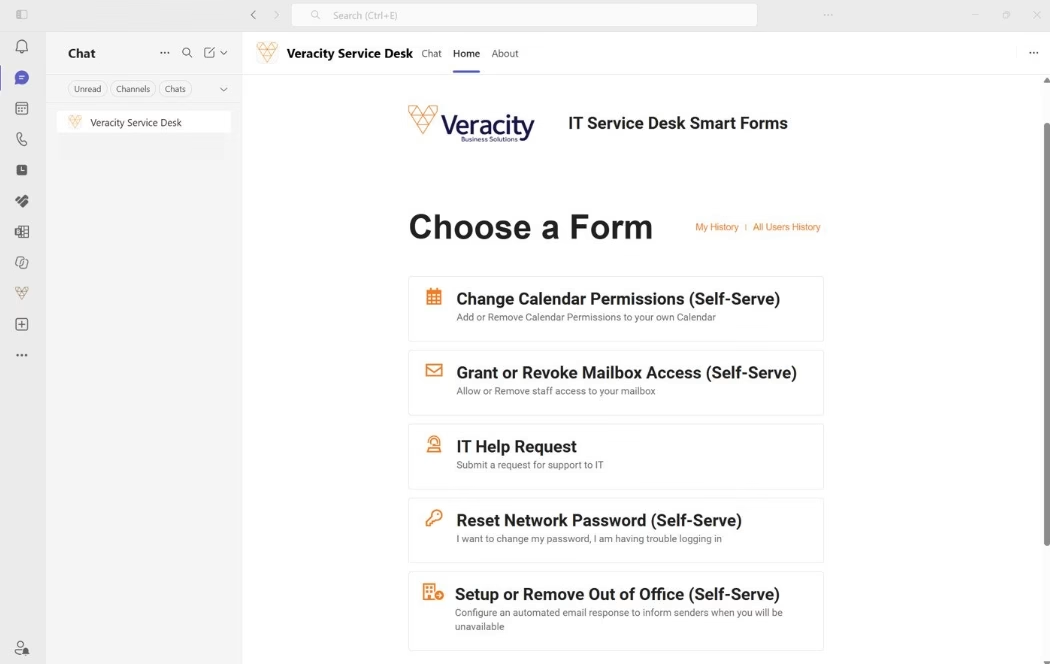
Once the feature has been enabled for your organisation, you’ll find Veracity Service Desk in the left-hand menu of Microsoft Teams.
There are two easy ways to submit a request:
- Home tab: Choose a SmartForm from the list, enter the required details and submit your request.
- Chat tab: Simply describe what you need help with, such as “set up my out of office”. The system will direct you to the appropriate form or log a ticket.
You can also use the Chat tab to ask about your open tickets.
What can I use SmartForms for?
SmartForms make it easy to submit common requests without needing to write an email or explain all the details from scratch.
The following forms are available to staff:
| SmartForm | When to use it |
|
Reset Network Password (Self-Serve) |
You need to change your network password. |
|
Change Calendar Permissions (Self-Serve) |
You want to give or remove someone’s access to your calendar. |
|
Grant or Revoke Mailbox Access (Self-Serve) |
You want to give or remove someone’s access to your mailbox. |
|
Setup or Remove Out of Office (Self-Serve) |
You need to turn automatic email replies on or off. |
|
IT Help Request |
You need help with something else that isn’t urgent. |
Each form guides you through the information we need, with required fields marked by an asterisk (*).
Prefer to use your browser?
You can also access SmartForms directly at veracity.forms.pia.ai and sign in using your usual Microsoft 365 account.
What happens after I submit a request?
Once you’ve completed and submitted a form:
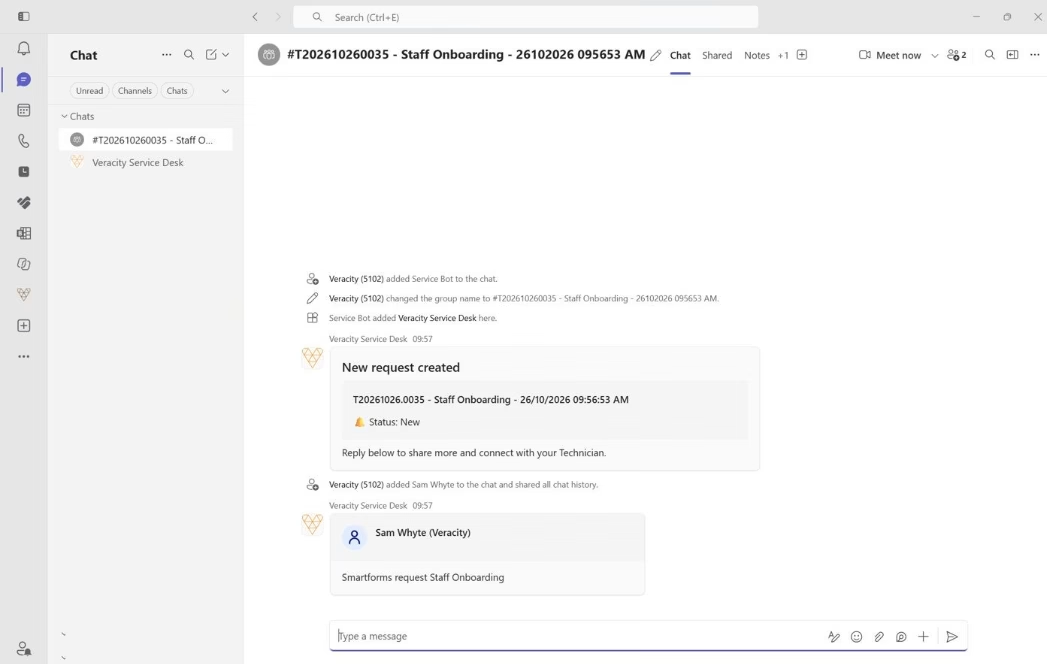
- You’ll receive a ticket number confirming that your request has been logged.
- You can view your submitted requests through the My History section.
- You can follow up in Teams, with each ticket logged through Teams having its own conversation where you can add information and see updates from our technicians.
Please remember that the Teams integration isn’t a live chat service. Our technicians will respond to requests within our usual Service Desk response timeframes.
When should I phone or email instead?
While the new features make everyday IT requests easier, there are still times when contacting us directly is the best option.
- For urgent issues, such as a system outage or being unable to work, please phone our Service Desk.
- If you’re locked out and can’t access Teams, contact us by phone or email.
- If you’re unsure what’s wrong, or the issue is difficult to explain, you’re always welcome to speak directly with our team.
We're here to help
These new features are simply another way to get the support you need, in a way that works for you.
Whether you choose to use Teams, submit a SmartForm, send an email or pick up the phone, the Veracity Service Desk team is here to help.
Need assistance? Contact the Veracity Service Desk on 1300 850 172.


